# GDPR compliance
The GDPR Compliance plugin of J2Commerce makes it feasible for online merchants to comply with the recent GDPR regulations on their store developed with J2Commerce.
This plugin now provides users the privilege to have control over their information, which they have used on the online store at the time of placing orders or purchasing products.
## Requirements
1. PHP 8.1.0 +
2. Joomla! 4.x/ Joomla! 5.x +
3. J2Commerce / J2Store 4.x +
## Installation
**Step 1:** Go to our [J2Commerce website](https://www.j2commerce.com/) > Extensions > Apps

**Step 2:** Locate the GDPR App > click View Details > Add to cart > Checkout.
**Step 3:** Go to your My Downloads under your profile button at the top right corner and search for the app. Click Available Versions > View Files > Download Now
**Step 4:** Use the Joomla! installer to install the app. Go to System > Install > Extensions > Download the app
**Step 5:** Go back to System > Manage > Extensions.
**Step 6:** Search for the app and enable it.
Enable app
## Settings
Now it's time to open the app and configure the settings.
**Step 1:** Go to Components > J2Commerce > Apps. Open App
open app
**Parameters**
**Notify store administrators about the changes made by the customer to their data.**
When this parameter is set to Yes, the store administrators will be informed when the users make any changes to their data stored on the store. You can enable this if you wish to be notified of the changes made by the users.
**Store administrator emails**
The email address(es) of the store administrator(s) could be specified here, separated by commas.
**Notify the customer about the change he made to his address?**
Enabling this parameter would notify the users about the changes made to their data.
**Log the activities like edit or delete by customers?**
When this option is turned on, the changes made by the user will be maintained as a log, and the store administrators could access this log under the “Activity log” tab.
General Requirements
**Show the GDPR my profile tab?**
This option would allow the display of a GDPR Request tab on the My Profile tab like this:

Thus, this paves the way for the users to send a custom request to the store administrators.
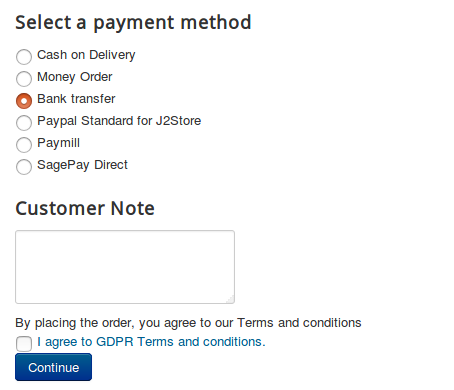
**GDPR terms and conditions** When you switch this option to Yes, the customer would see a statement on the checkout page that would request the customer’s consent for the GDPR terms and conditions like this:
**Terms display type**
You could choose how the terms and conditions would be displayed on the checkout, either as a link or as the checkout.
**Select the Article that has your GDPR Terms and Privacy content**
With this option, you could associate the terms and conditions article with GDPR regulations. All you have to do is create an article specifying GDPR terms and regulations and link that article here.
**Prefix**
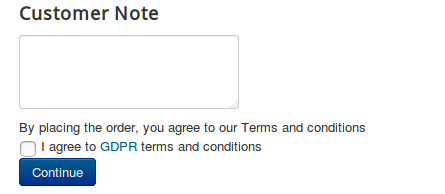
If you wish to add a prefix to the terms and conditions label for GDPR. For example, If you specify “I agree to” here, then that would be displayed as the screenshot specified here:
For a multi-lingual site, a language constant could be entered here, and a [language override](http://docs.j2store.org/articles/2064496-language-overrides-in-joomla-with-examples-using-j2store) could be created. Instance: If you specify the language constant, J2STORE\_GDPR\_PREFIX here, then you could create an override for the above constant. Or you could just create an override for the one that is already there.
**Terms and conditions label**
Her,e you could mention the label of the terms and conditions statement. For example, If we have specified “GDPR”, then it would be displayed on the frontend like this:

For a multi-lingual site, a language constant(apart from the one inserted here already) could be entered here, and a language override could be created. Instance: If you specify the language constant, J2STORE\_GDPR\_TERMS\_LABEL, here, then you could create an override for the above constant. Or you could just create an override for the one that is already there.
**Suffix**
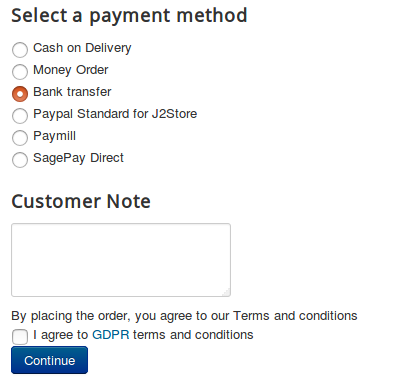
The text you specify here will be the one that is displayed on the terms and conditions consent statement at the end. For example, If you have set this text as “terms and conditions”, then it would be displayed as follows:
For a multi-lingual site, a language constant could be entered here, and a language override could be created. Instance: If you specify the language constant, J2STORE\_GDPR\_SUFFIX here, then you could create an override for the above constant. Or you could just create an override for the one that is already there.
**Validation message**
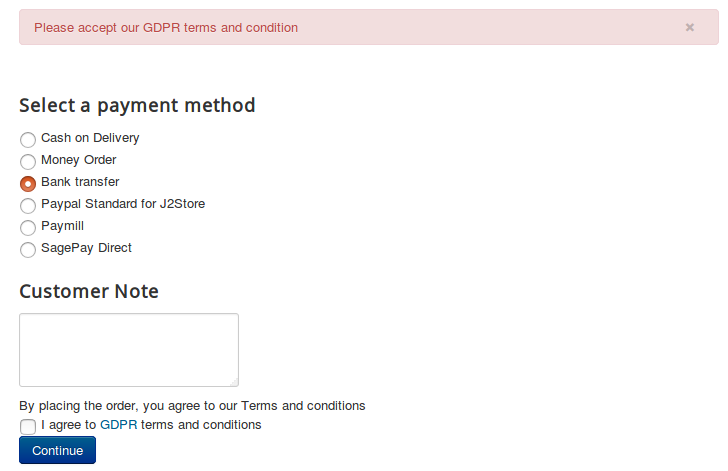
You could enter the error message that has to be displayed if the user doesn’t agree to the terms and conditions for GDPR.
For a multi-lingual site, a language constant could be entered here, and a [language override](http://docs.j2store.org/articles/2064496-language-overrides-in-joomla-with-examples-using-j2store) could be created. Instance: If you specify the language constant, J2STORE\_GDPR\_VALIDATION here, then you could create an override for the above constant. Or you could just create an override for the one that is already there.
Buttons for customers
**Delete All Addresses**
This would display a button at the My Profile page allowing users to delete all their addresses with a single click. The button would be displayed as follows:


