# Creating subscription based products

## Creating a simple subscription product <a href="#creating-simple-subscription-product" id="creating-simple-subscription-product"></a>

Here is a video on how to create a simple subscription product:

{% embed url="<https://youtu.be/mNFXMLHrdjY>" %}

* Go to Content > Article Manager > create new article > Move to the J2Commerce (J2Store cart) tab
* Choose 'YES' to Treat as a Product and select Simple Subscription as Product Type, and click Save and Continue.

<figure><img src="https://1405307842-files.gitbook.io/~/files/v0/b/gitbook-x-prod.appspot.com/o/spaces%2FkVKvFBYm8luCOko7zt2v%2Fuploads%2Fx42VA7BnIQ5Q495XW82i%2Fsimple%20subscription.webp?alt=media&#x26;token=6c8979f5-853b-481d-b1bb-537aec87555c" alt=""><figcaption></figcaption></figure>

* Set 'YES' to Visible in storefront and navigate to the Pricing tab.
* Pricing tab, where you could set your subscription product’s price, customer group, expiry date, etc.

<figure><img src="https://1405307842-files.gitbook.io/~/files/v0/b/gitbook-x-prod.appspot.com/o/spaces%2FkVKvFBYm8luCOko7zt2v%2Fuploads%2F1dZlVvjArPxojTHWN8rj%2Fpricing.webp?alt=media&#x26;token=91ab9118-7331-4990-9e77-c037acbfa1d2" alt=""><figcaption></figcaption></figure>

You can set images, shipping, and filters to your subscription product.

## Creating a variable subscription product <a href="#creating-variable-subscription-product" id="creating-variable-subscription-product"></a>

Here is a video on how to create a variable subscription product:

{% embed url="<https://youtu.be/mp9m1qSMJ0E>" %}

The variable subscription product allows you to add only one option with multiple values.

For example, create a premium subscription providing customers with an option to choose a subscription period.

Go to J2Commerce > Catalog > Options and create an option “Subscription period” and add the option values such as 3 months, 6 months.

![subscription option](https://1405307842-files.gitbook.io/~/files/v0/b/gitbook-x-prod.appspot.com/o/spaces%2FkVKvFBYm8luCOko7zt2v%2Fuploads%2FMigVRMVIjnplUtqGxByP%2Foptions.webp?alt=media\&token=d307549b-6339-43f6-a479-44d03b6ca47d)

<figure><img src="https://1405307842-files.gitbook.io/~/files/v0/b/gitbook-x-prod.appspot.com/o/spaces%2FkVKvFBYm8luCOko7zt2v%2Fuploads%2FtKrIC8lDa94vv6Ueuo8w%2Foptions2.webp?alt=media&#x26;token=38e5e4dc-31a9-489e-b234-0904a7eb1fb7" alt=""><figcaption><p>subscription options</p></figcaption></figure>

* Go to Content > Article Manager > create new article > Move to the J2Commerce (J2Store cart) tab
* Choose 'YES' to Treat as a Product and select Variable Subscription as Product Type, and click Save and Continue.
* Set 'YES' to Visible in storefront and navigate tothe  Variants tab.

<figure><img src="https://1405307842-files.gitbook.io/~/files/v0/b/gitbook-x-prod.appspot.com/o/spaces%2FkVKvFBYm8luCOko7zt2v%2Fuploads%2FSQROmAghbmRWAzMq8ErR%2Fvariable%20sub.webp?alt=media&#x26;token=601a6f23-7eb6-4097-af09-bffea4159e2a" alt=""><figcaption></figcaption></figure>

* In the variants tab, search and add the (Subscription Period) option. Click on the option and click SAVE.&#x20;

<figure><img src="https://1405307842-files.gitbook.io/~/files/v0/b/gitbook-x-prod.appspot.com/o/spaces%2FkVKvFBYm8luCOko7zt2v%2Fuploads%2FOly7kNG3vQRA7fLN39Fe%2Fvariable%20sub1.webp?alt=media&#x26;token=9800891d-6c1e-4c50-a6a7-8255a62ff33b" alt=""><figcaption></figcaption></figure>

* Next, add the set values.

<figure><img src="https://1405307842-files.gitbook.io/~/files/v0/b/gitbook-x-prod.appspot.com/o/spaces%2FkVKvFBYm8luCOko7zt2v%2Fuploads%2FxFcEVATpZAFFoWtJDJfZ%2Fvariable%20sub3.webp?alt=media&#x26;token=4ded4ae8-a5fe-48b5-999b-ce889004c833" alt=""><figcaption></figcaption></figure>

* Once you have created the set values, click on the Generate Variants button

<figure><img src="https://1405307842-files.gitbook.io/~/files/v0/b/gitbook-x-prod.appspot.com/o/spaces%2FkVKvFBYm8luCOko7zt2v%2Fuploads%2FtNohilPtnreWzjfK9dU0%2Fvariable%20sub2.webp?alt=media&#x26;token=8b3e2c39-b70e-4ea8-bbc2-e21abf5b321d" alt=""><figcaption></figcaption></figure>

It allows you to add one option with multiple variants. For example, Subscription period as an option with the following variants: 3 months, 6 months, etc. See the screenshot below
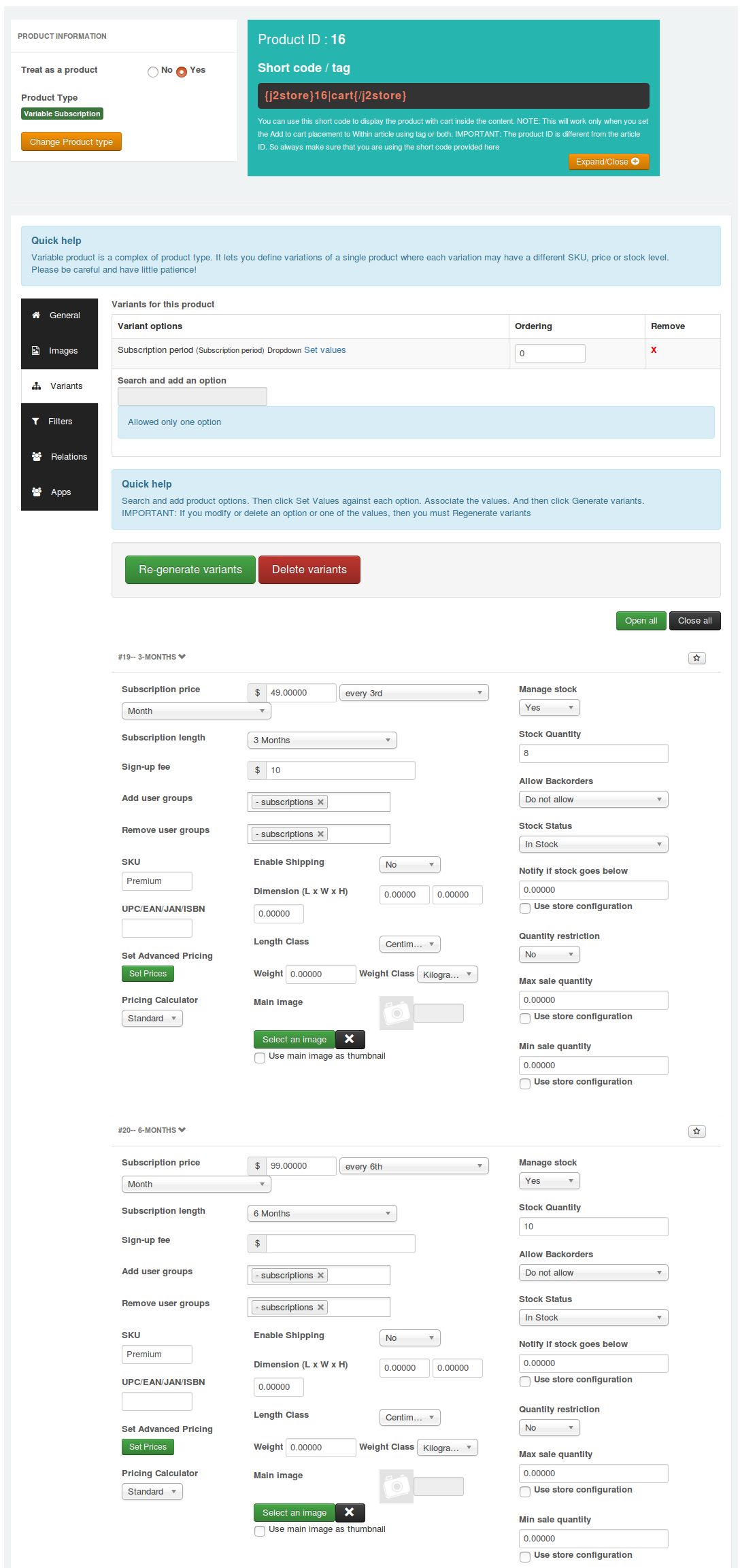
![sub variants](https://raw.githubusercontent.com/j2store/doc-images/master/subscriptions-and-memberships/creating-subscription-based-products/subscription-variants.png)

## Pricing <a href="#pricing" id="pricing"></a>

**Subscription price:** Enter the membership price (for example, $ 29) based on either a daily or weekly or monthly, or yearly basis. For example, if you would like to give a subscription price of $29 for only 3 months, then enter $29 in the first text box and then choose every 3rd from the dropdown list, and then choose the month from the third dropdown list.

**Subscription length:** The subscription length duration will be listed based on the recurring period you selected above. For example, if your subscription product’s duration period is only for 3 months, choose 3 months. So the subscription will end at the end of the 3rd month. If you would like to give a lifetime price for your subscription product (i.e.) wants to collect $29 at the end of every 3 months for lifetime, choose Never Expire for the Subscription length. So $29 for every 3rd month for lifetime.

**Add / Remove user groups:** Users will be added and removed from the Joomla user groups when their subscription to the level is enabled or disabled.

**Sign-up fee:** This app allows you to collect a one-time set-up fee or sign-up fee from your customers. Enter your sign-up fee here. For example, $5 or $10.

**Renewal discount:** If you want to give the same discount to the customer during renewals. Checking this checkbox will override any renewal discount set globally in the app settings.

**Set Advanced Pricing:** If you want advanced pricing, click the ‘Set Prices’ button, and it will open up a pop-up window to allow you to set an advanced price setting.

![subscription pricing](https://raw.githubusercontent.com/j2store/doc-images/master/subscriptions-and-memberships/creating-subscription-based-products/subscription-pricing.png)

## Frontend Demo: <a href="#frontend-demo" id="frontend-demo"></a>

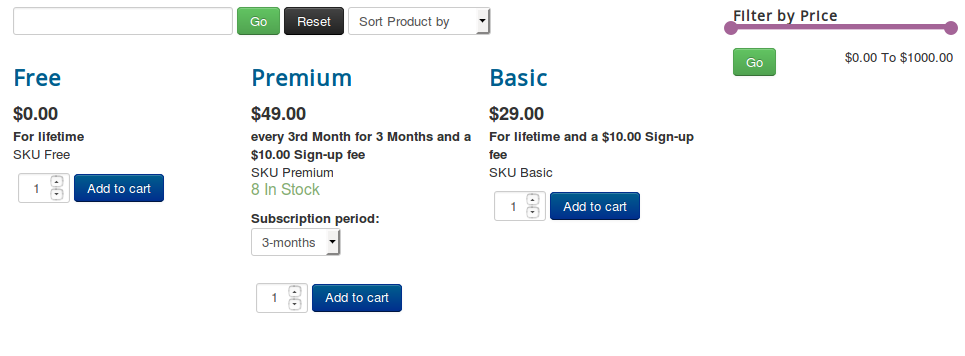
![subs frontend](https://raw.githubusercontent.com/j2store/doc-images/master/subscriptions-and-memberships/creating-subscription-based-products/subscription-frontend.png)

![subs payment checkout](https://raw.githubusercontent.com/j2store/doc-images/master/subscriptions-and-memberships/creating-subscription-based-products/subscription-payment-checkout.png)

![subs cart](https://raw.githubusercontent.com/j2store/doc-images/master/subscriptions-and-memberships/creating-subscription-based-products/subscription-cart.png)

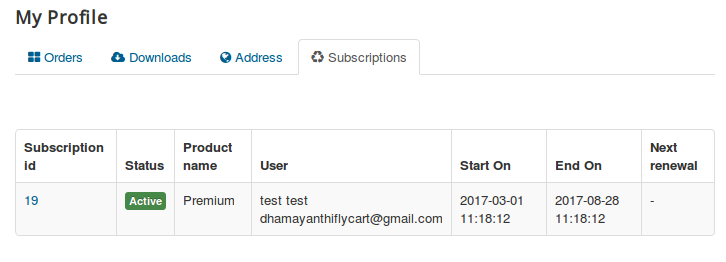
![subs frontend profile](https://raw.githubusercontent.com/j2store/doc-images/master/subscriptions-and-memberships/creating-subscription-based-products/subscription-frontend-profile.png)

## Check the subscription details and status from the backend <a href="#check-the-subscription-details-and-status-from-backend" id="check-the-subscription-details-and-status-from-backend"></a>

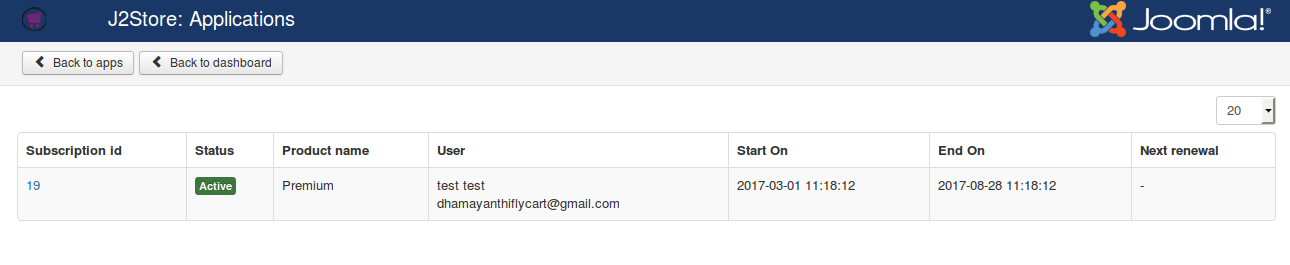
Go to J2Commerce > Apps and open the Subscription Products app, and you can see the subscription button on top of the page. Click on this button to view the customer’s subscription details and status.
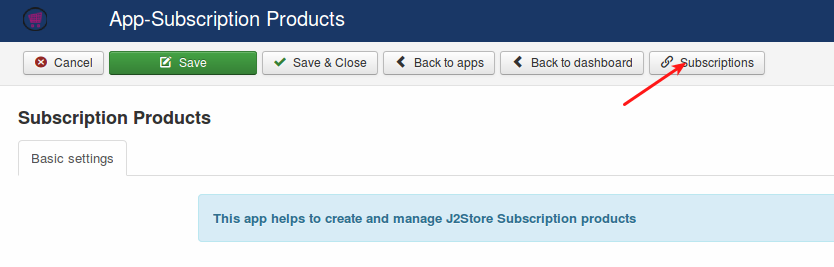
![subs button](https://raw.githubusercontent.com/j2store/doc-images/master/subscriptions-and-memberships/creating-subscription-based-products/subscription-button.png)

![subs detail](https://raw.githubusercontent.com/j2store/doc-images/master/subscriptions-and-memberships/creating-subscription-based-products/subscription-detail.png)